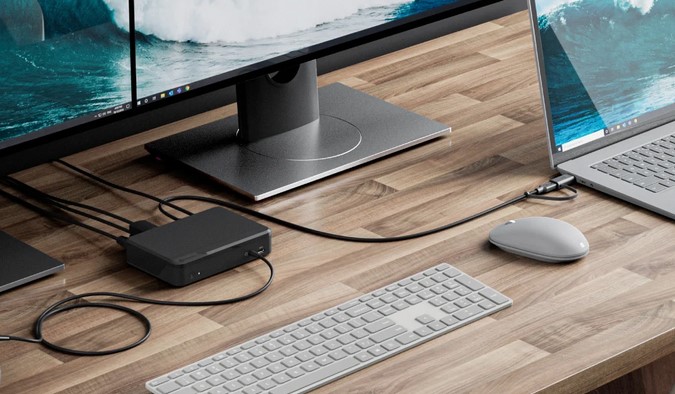
Picture this: You walk into your workspace, coffee in hand, ready to crush your daily goals. Instead, you spend the first ten minutes untangling a chaotic web of cables. You plug in your monitor, search for the charging cord, fiddle with the mouse USB, and realize your laptop doesn’t even have enough ports for your external hard drive. By the time you sit down, your creative momentum is gone, replaced by a low-grade tech headache.
Over my ten years of configuring workspaces and deploying HealthTech solutions—where doctors and data analysts need seamless transitions between mobile rounds and desktop deep-dives—I have learned one universal truth: friction kills focus. For years, I watched brilliant professionals bottleneck their efficiency because they treated their laptops like static desktops. The moment I started introducing laptop docking stations into their setups, productivity skyrocketed.
Let’s dive into why this single piece of hardware is the ultimate missing link in your workstation.
What is a Laptop Docking Station and Why Do You Need It?
To understand laptop docking stations, think of them as the ultimate airport terminal for your digital life. Your laptop is a high-speed jet, capable of incredible performance, but it needs a central hub to connect passengers (your mouse, keyboard, dual monitors, and external drives) to the rest of the world without crashing.
The Hub of Your Workspace
A docking station expands your laptop’s limited built-in ports into a powerhouse of connectivity through a single cable. Instead of plugging in five different wires every time you sit at your desk, you plug in one. It instantly transforms your ultra-portable device into a full-fledged desktop workstation.
Power Delivery and Data Syncing Combined
Modern docks don’t just pass data back and forth; they also feed power back into your machine. Thanks to advancements in USB-C and Thunderbolt technology, that single connection charges your laptop while simultaneously driving 4K displays and transferring gigabytes of data.
The Hidden Productivity Cost of a “Naked” Laptop
When you rely solely on your laptop’s built-in ports, you are paying a hidden tax on your time and cognitive energy.
-
The Transition Tax: If you move between meetings and your desk three times a day, plugging and unplugging peripherals wastes nearly an hour a week.
-
The Ergonomic Drain: Hunching over a small 13-inch laptop screen strains your neck and eyes, reducing the hours you can comfortably work.
-
The Port Scarcity Struggle: Modern laptops are beautifully thin, but they achieved that by aggressively cutting ports. Trying to run a modern workflow on two USB-C ports is like trying to run a corporate office out of a single telephone booth.
Navigating the Tech Maze: Choosing the Right Docking Station
Walking into the hardware aisle—or browsing online—can feel overwhelming. The tech industry loves alphabet soup: USB-A, USB-C, Thunderbolt 3, Thunderbolt 4, DisplayPort, and HDMI. Let’s cut through the jargon.
Thunderbolt vs. Standard USB-C Docks
This is where most beginners make an expensive mistake. They buy a cheap USB-C hub and wonder why their dual 4K monitors look blurry or refuse to turn on.
-
Standard USB-C Docks: Excellent for basic setups. They usually support one external monitor, a few USB devices, and pass-through charging. Think of it as a standard two-lane highway.
-
Thunderbolt 4 / USB4 Docks: This is the gold standard. It offers massive bandwidth—up to 40 Gbps. It’s a twelve-lane superhighway that allows you to run multiple high-resolution displays, external SSDs at maximum speed, and high-speed Ethernet without a single hiccup.
Match Your Performance to Your Workflow
| User Profile | Core Needs | Recommended Dock Type |
| The Casual Professional | E-mails, Docs, Single Monitor | Budget USB-C Dock (with Power Delivery) |
| The Data Analyst / Creator | Dual 4K Displays, Fast Storage | Thunderbolt 4 / USB4 Dock |
| The Hybrid Warrior | Constant Travel & Desk Switching | Portable USB-C Multi-port Hub |
Unlocking Desktop Power: The Setup Strategy
Owning a laptop docking station is only half the battle; configuring it correctly is where the magic happens. Over a decade in the field, I’ve developed a foolproof blueprint for maximizing your new hardware.
1. Prioritize Power Delivery (PD)
Ensure the docking station you choose provides enough wattage to power your specific laptop. If your laptop requires 65W of power, look for a dock that offers at least 65W–90W Power Delivery. If you skimp here, your laptop battery might actually drain while plugged into the dock during heavy workloads.
2. Streamline Your Peripherals
Connect your high-bandwidth items directly to the dock’s rear ports to keep your desk looking clean.
-
Back Ports: Monitors, wired keyboards, external backup drives, and your LAN/Ethernet cable.
-
Front Ports: Reserved for temporary connections like flash drives, SD cards, and your phone charger.
Pro Tip: Always check your laptop’s specific video output limitations. An M1 or M2 base-model MacBook, for example, natively supports only one external display through a standard dock without special DisplayLink drivers. Always read the fine print before buying three monitors!
What the Manufacturers Don’t Tell You
Not all setups are plug-and-play, and I want to save you the frustration I experienced during early tech deployments.
The Heat Factor
High-performance laptop docking stations get warm. They are processing massive amounts of data and routing electricity simultaneously. Do not hide your dock inside a closed drawer or smother it under papers. Give it breathing room to prevent thermal throttling.
Cable Quality Matters
You cannot use just any cheap cable to connect your laptop to the dock. If you use a standard phone charging cable, your monitors won’t work. You must use the high-speed, certified Thunderbolt or USB-C cable that comes in the box with your docking station to ensure full bandwidth.
Conclusion: Reclaim Your Focus
Investing in a high-quality laptop docking station isn’t just about buying another tech gadget. It’s an investment in your daily peace of mind and mental clarity. By eliminating the friction of setting up your workspace every single day, you create an environment where focus comes naturally.
Are you ready to banish the cable chaos from your desk for good? What does your current workspace setup look like, and what’s holding your productivity back? Drop your thoughts or questions in the comments below—I’d love to help you optimize your setup!
