Month: <span>July 2026</span>

Source:https://cdn.mos.cms.futurecdn.net

Imagine standing on the edge of a breathtaking ridge in the Swiss Alps, or navigating a bustling, neon-lit night market in Tokyo. You pull out your top-tier smartphone to capture the moment. Suddenly, a sudden downpour hits, or you trip on an uneven cobblestone, sending your $1,200 phone shattering onto the pavement. Just like that, your epic travel vlog turns into an expensive nightmare, and your creative flow is entirely ruined.

Over my ten years deploying rugged hardware solutions and analyzing mobile imaging pipelines, I have witnessed countless creators break their primary devices trying to force them into environments they weren’t built to survive. In the fast-paced worlds of adventure sports and daily vlogging, relying on delicate gear is a recipe for disaster. The moment I started integrating dedicated action cameras into modern production workflows, the game completely changed.

These tiny, near-indestructible cubes do more than just survive; they capture perspectives that standard cameras simply cannot reach. Let’s unpack exactly how to choose and use these pocket-sized powerhouses to elevate your content.

What Makes Action Cameras a Vlogger’s Secret Weapon?

To appreciate why action cameras are essential, think of them as the visual equivalent of an off-road overland vehicle. Your smartphone or mirrorless camera is like a luxury sports car—sleek, beautiful, and highly capable on a smooth track. But when you want to dive into rough terrain, handle torrential rain, or mount your lens to a fast-moving bicycle handlebar, you need a rugged machine built to take a beating.

The Power of Ultra-Wide Optics

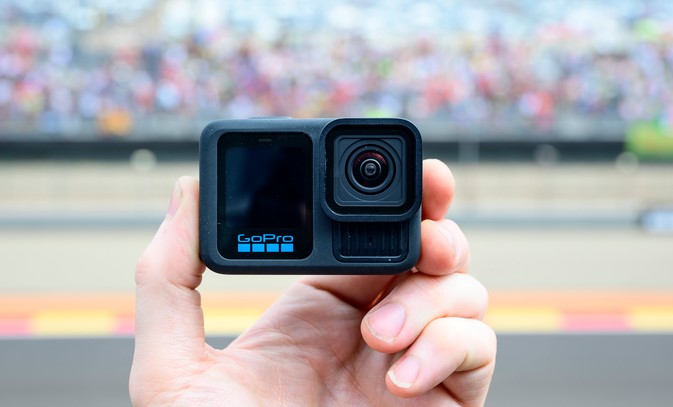
Unlike traditional cameras that require bulky interchangeable glass, an action camera utilizes a specialized fixed ultra-wide lens. This expansive field of view acts just like human peripheral vision, allowing you to capture both your facial expressions and the sweeping landscape behind you without needing an awkwardly long selfie stick.

Electronic Image Stabilization (EIS)

The real magic happening beneath the rugged chassis lies in the stabilization algorithms. Modern action gear uses a combination of internal gyroscopes and real-time cropping to turn shaky, jarring movements into buttery-smooth cinematic sequences.

Decoding the Technical Specs: A Beginner’s Guide

Walking into the camera aisle can feel like drowning in a sea of acronyms. Let’s break down the core specifications you need to look for so you don’t overpay for hype.

Resolution vs. Frame Rates

You will see labels boasting 4K at 120fps or even 5.3K resolution.

  • Resolution (4K/5.3K): This refers to the pixel density. Higher resolution gives you the freedom to crop into your video during editing without losing crispness.

  • Frame Rate (FPS): Standard videos play at 24fps or 30fps. If a camera shoots at 60fps or 120fps, it is capturing more visual information per second, allowing you to slow the footage down into stunning, crisp slow-motion shots.

Sensor Size Matters

In the imaging world, the image sensor is the digital canvas that catches light. For years, these devices suffered in low-light environments because their sensors were tiny. Modern iterations have introduced larger 1-inch or 1/1.3-inch type sensors, dramatically improving how they handle sunset vlogs and moody indoor settings.

The Top Action Cameras for Creators in 2026

The current hardware landscape has crystallized into a few definitive champions, each optimized for different styles of storytelling.

1. The Horizon Locker: Built for Extreme Adventure

For users who plan to skydive, mountain bike, or surf, the market leaders offer unmatched 360-degree Horizon Steady locks. You can literally flip the camera completely upside down mid-air, and the video output remains perfectly level with the earth.

  • Key Strengths: Rugged waterproofing without an external housing, robust front-and-back touchscreens, and ultra-high frame rates for slow-motion breakdown shots.

2. The Vlogger’s Dream: Flip Screens and Modular Audio

If your content is focused on talking directly to your audience while walking through busy streets, look toward modular ecosystems.

  • Key Strengths: Magnetic mounting systems that let you swap the camera from a chest mount to a tripod in half a second, alongside dedicated flip-up screens for perfect shot framing.

  • Low-Light Dominance: Newer models featuring larger sensors excel at preserving skin tones even when city streetlamps are your only light source.

Maximizing Your Action Camera Workflow

Owning the hardware is only half the battle; knowing how to configure it separates amateurs from seasoned pros. Over a decade of field-testing, I’ve refined a streamlined setup process.

Match Your Settings to Your Scene

Activity Type Recommended Resolution Frame Rate (FPS) Stabilization Level
Talking Head / Vlogging 4K 30 fps Standard / High
Action Sports (Biking/Surfing) 4K or 5.3K 60 or 120 fps Maximum / Horizon Lock
Cinematic B-Roll 4K 120 fps Standard

The Golden Audio Rule

The built-in microphones on waterproof action cameras are covered by protective, watertight membranes. While great for preventing water damage, this can make your audio sound muffled, like you are speaking from inside a plastic container.

Pro Tip: If you intend to speak to your audience frequently, invest in a dedicated USB-C wireless microphone adapter or a specialized media mod framework. Crisp audio accounts for more than 50% of perceived video quality!

The Mistakes Retailers Won’t Tell You

Before you pack your bags for your next big trip, keep these two critical operational realities in mind to avoid missing your shots.

The MicroSD Card Bottleneck

You cannot use an old, slow memory card salvaged from an old smartphone. Writing high-bitrate 4K video requires immense speed. Always buy cards labeled as UHS-I U3 or V30/V60. If your card is too slow, your camera will randomly stop recording or overheat and freeze right in the middle of an irreplaceable moment.

The Reality of Battery Depletion

Because these devices are engineered to be incredibly compact, their batteries are naturally small. Expect roughly 60 to 90 minutes of continuous recording per charge. Always carry at least two spare batteries and an external dual-charging cradle in your gear bag so you never run out of juice when the action peaks.

Conclusion: Capture Your World Without Limits

Embracing action cameras isn’t just about adding another piece of tech to your backpack—it’s about unlocking total creative freedom. By removing the fear of damaging your equipment, you open the door to unique angles, immersive stories, and authentic moments that standard cameras simply miss.

Are you getting ready to document an upcoming travel adventure, or are you looking to start a daily vlogging channel from your hometown? What environment are you most excited to throw your camera into? Let me know in the comments below, and let’s get your ultimate rig dialed in!

Gadgets

Source:https://www.mibrofit.com

You wake up at 6:00 AM, lace up your running shoes, and step outside into the crisp morning air. You press “Start” on your wrist, smash your personal 5K record, and head home feeling like an absolute champion. But when you check your health app, it drops a devastating truth bomb: your device completely miscalculated your heart rate zones, missed half your route due to a dropped GPS signal, and now tells you that you burned a grand total of twelve calories.

Over my ten years as a HealthTech writer and workspace deployment specialist, I have tested hundreds of medical-grade sensors and wearables. If there is one piece of advice I find myself constantly repeating to clients, athletes, and friends alike, it is this: bad data is worse than no data.

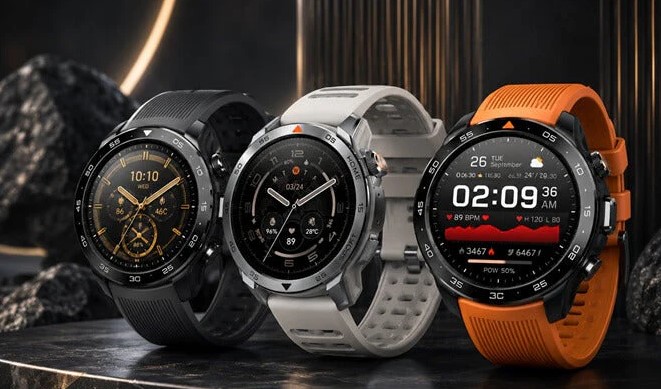
In 2026, smartwatches for fitness have transcended beyond simple step-counters. They are now deeply integrated ecosystem hubs that act as digital health coaches on your wrist. Whether you are a beginner looking to move more or an intermediate runner eyeing a half-marathon, picking the right partner for your wrist is the ultimate productivity hack for your body.

The Core Blueprint: How Health Tech Translates Your Body

To truly understand how modern smartwatches for fitness work, think of your wearable as a dedicated translator. Your body speaks in biological whispers—micro-fluctuations in blood flow, skin temperature shifts, and electrical pulses.

The watch uses a process called photoplethysmography (PPG)—shining light into your blood vessels to measure how fast your heart pumps. It then takes this raw physiological language and converts it into clean, actionable metrics like Vo2 Max, Sleep Quality scores, and heart rate variability (HRV).

When you purchase a high-quality smartwatch, you aren’t just buying a screen; you are investing in the proprietary algorithms that translate those complex numbers into clear instructions on when to push hard and when to rest.

The Heavyweights of 2026: Top Models Reviewed

The wearable market in 2026 has distinct champions tailored to specific ecosystems and user goals. Let’s break down the best options available right now for beginner and intermediate users.

1. Garmin Venu 3: The All-Around Fitness Champion

If your primary focus is pure fitness tracking balanced with everyday lifestyle features, the Garmin Venu 3 remains the gold standard.

  • The Big Draw: It features Garmin’s signature “Body Battery” metric, which calculates your energy levels by analyzing your sleep, stress, and workouts. It tells you precisely how much gas you have left in the tank.

  • Display: A stunning, ultra-bright AMOLED touchscreen that is incredibly easy to read under direct sunlight.

  • Battery Life: Unlike standard smartwatches that die in 24 hours, the Venu 3 easily cruises past a full week on a single charge.

2. Apple Watch Series 11: The Seamless Ecosystem King

For iPhone users who want a device that handles corporate emails just as smoothly as a high-intensity interval training (HIIT) session, the newly released Apple Watch Series 11 is an unmatched powerhouse.

  • Advanced Health Metrics: Building on the clinical success of the previous generation, the Series 11 offers deep Edge-AI wellness tracking, advanced sleep coaching, and FDA-cleared irregular heart rhythm alerts.

  • Precision Tracking: Features enhanced dual-frequency GPS algorithms that ensure your city runs or trail hikes map out perfectly without jagged tracking lines.

  • The Catch: The battery life still hovers around the 1.5 to 2-day mark, meaning a daily charging routine is mandatory.

3. Samsung Galaxy Watch 8: The Android Powerhouse

Samsung has solidified its place as the premier choice for Android and ecosystem loyalists with the Galaxy Watch 8.

  • Body Composition Analysis: This device uses Bioelectrical Impedance Analysis (BIA) to measure your body fat percentage, skeletal muscle mass, and metabolic rate directly from your wrist.

  • AI Coaching: It pairs seamlessly with modern Wear OS architectures to provide automated workout recognition and proactive health notifications.

4. Fitbit Charge 6: The Best Budget Tracker for Beginners

Not everyone wants a bulky mini-computer on their wrist. If you want something lightweight, affordable, and incredibly intuitive, the Fitbit Charge 6 is a stellar pick.

  • Simplicity First: The companion app is arguably the most beginner-friendly platform on the market, translating data into easy-to-read graphs.

  • Feature Rich: Despite its small profile, it packs built-in GPS, Google Wallet, and robust sleep stage tracking.

Side-by-Side: Finding Your Perfect Fitness Match

Choosing a device depends entirely on your phone preference, budget, and how deeply you want to analyze your data.

Smartwatch Model Best Suited For Key Strength Battery Life
Garmin Venu 3 Overall Fitness & Recovery Body Battery & Sensor Accuracy Up to 10 Days
Apple Watch Series 11 iPhone Users / Smart Features Seamless UI & Advanced Health Eco 36–48 Hours
Samsung Galaxy Watch 8 Android Users / Gym Enthusiasts BIA Body Composition Tracking 40–50 Hours
Fitbit Charge 6 Beginners & Minimalists Simple UI & Long Battery Life Up to 7 Days

Expert Advice: Getting the Most Out of Your Wearable

Buying the tech is only step one. Throughout my years deploying health tracking systems, I have noticed that most users only utilize about 10% of their device’s actual capabilities.

Pro Tip: Dial In Your Sleep Windows

Most smartwatches use your baseline resting heart rate (RHR) during deep sleep to calculate your daily recovery metrics. If you do not set your accurate, consistent sleep windows inside the app settings, the watch will mistake late-night couch lounging for sleep. This skews your recovery scores and gives you inaccurate baseline data.

The Traeger Trap (What to Avoid)

Do not treat your calorie burn estimation as absolute gospel law. No wrist-based wearable can perfectly calculate precise caloric expenditure; they are statistical estimations based on your movement and heart rate. Use the calorie metric as a trend line to measure if you are working harder over time, rather than an exact mathematical number for your diet tracking.

The Pitfalls of Sensor Placement

Before you return a watch because you think the heart rate monitor is broken, make sure you aren’t committing the number one mistake of wearable beginners: poor wrist positioning.

  • The Correct Fit: Your smartwatch should sit roughly one finger-width above your wrist bone (towards your elbow).

  • The Tightness Rule: It needs to be snug enough that it doesn’t slide around when you shake your arm, but not so tight that it leaves deep indentations in your skin.

  • The Sweat Cleanse: Modern optical sensors can easily get blocked by built-up sweat, dead skin cells, or dried workout lotion. Wipe the sensor array on the back of the watch case down with a microfiber cloth at least once a week to keep the optical channel crystal clear.

Conclusion: Take Charge of Your Health Journey

Investing in a proper fitness companion isn’t about chasing tech trends—it’s about building accountability into your everyday life. A great smartwatch doesn’t do the hard work for you, but it shines a bright light on the path to your goals, showing you exactly how your habits change your health.

Are you looking to upgrade your current setup, or are you picking out your very first fitness tracker? What feature matters most to you—battery life, precise GPS mapping, or lifestyle smart features? Drop your thoughts in the comments below, and let’s find the perfect device to supercharge your health journey!

Gadgets

Source:https://cdn.shopify.com

Picture this: You walk into your workspace, coffee in hand, ready to crush your daily goals. Instead, you spend the first ten minutes untangling a chaotic web of cables. You plug in your monitor, search for the charging cord, fiddle with the mouse USB, and realize your laptop doesn’t even have enough ports for your external hard drive. By the time you sit down, your creative momentum is gone, replaced by a low-grade tech headache.

Over my ten years of configuring workspaces and deploying HealthTech solutions—where doctors and data analysts need seamless transitions between mobile rounds and desktop deep-dives—I have learned one universal truth: friction kills focus. For years, I watched brilliant professionals bottleneck their efficiency because they treated their laptops like static desktops. The moment I started introducing laptop docking stations into their setups, productivity skyrocketed.

Let’s dive into why this single piece of hardware is the ultimate missing link in your workstation.

What is a Laptop Docking Station and Why Do You Need It?

To understand laptop docking stations, think of them as the ultimate airport terminal for your digital life. Your laptop is a high-speed jet, capable of incredible performance, but it needs a central hub to connect passengers (your mouse, keyboard, dual monitors, and external drives) to the rest of the world without crashing.

The Hub of Your Workspace

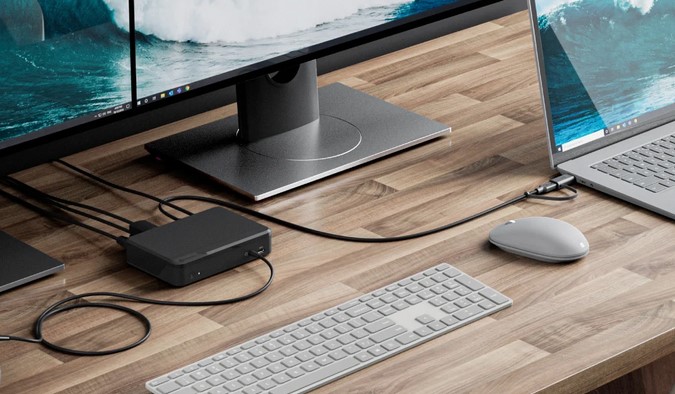
A docking station expands your laptop’s limited built-in ports into a powerhouse of connectivity through a single cable. Instead of plugging in five different wires every time you sit at your desk, you plug in one. It instantly transforms your ultra-portable device into a full-fledged desktop workstation.

Power Delivery and Data Syncing Combined

Modern docks don’t just pass data back and forth; they also feed power back into your machine. Thanks to advancements in USB-C and Thunderbolt technology, that single connection charges your laptop while simultaneously driving 4K displays and transferring gigabytes of data.

The Hidden Productivity Cost of a “Naked” Laptop

When you rely solely on your laptop’s built-in ports, you are paying a hidden tax on your time and cognitive energy.

  • The Transition Tax: If you move between meetings and your desk three times a day, plugging and unplugging peripherals wastes nearly an hour a week.

  • The Ergonomic Drain: Hunching over a small 13-inch laptop screen strains your neck and eyes, reducing the hours you can comfortably work.

  • The Port Scarcity Struggle: Modern laptops are beautifully thin, but they achieved that by aggressively cutting ports. Trying to run a modern workflow on two USB-C ports is like trying to run a corporate office out of a single telephone booth.

Navigating the Tech Maze: Choosing the Right Docking Station

Walking into the hardware aisle—or browsing online—can feel overwhelming. The tech industry loves alphabet soup: USB-A, USB-C, Thunderbolt 3, Thunderbolt 4, DisplayPort, and HDMI. Let’s cut through the jargon.

Thunderbolt vs. Standard USB-C Docks

This is where most beginners make an expensive mistake. They buy a cheap USB-C hub and wonder why their dual 4K monitors look blurry or refuse to turn on.

  • Standard USB-C Docks: Excellent for basic setups. They usually support one external monitor, a few USB devices, and pass-through charging. Think of it as a standard two-lane highway.

  • Thunderbolt 4 / USB4 Docks: This is the gold standard. It offers massive bandwidth—up to 40 Gbps. It’s a twelve-lane superhighway that allows you to run multiple high-resolution displays, external SSDs at maximum speed, and high-speed Ethernet without a single hiccup.

Match Your Performance to Your Workflow

User Profile Core Needs Recommended Dock Type
The Casual Professional E-mails, Docs, Single Monitor Budget USB-C Dock (with Power Delivery)
The Data Analyst / Creator Dual 4K Displays, Fast Storage Thunderbolt 4 / USB4 Dock
The Hybrid Warrior Constant Travel & Desk Switching Portable USB-C Multi-port Hub

Unlocking Desktop Power: The Setup Strategy

Owning a laptop docking station is only half the battle; configuring it correctly is where the magic happens. Over a decade in the field, I’ve developed a foolproof blueprint for maximizing your new hardware.

1. Prioritize Power Delivery (PD)

Ensure the docking station you choose provides enough wattage to power your specific laptop. If your laptop requires 65W of power, look for a dock that offers at least 65W–90W Power Delivery. If you skimp here, your laptop battery might actually drain while plugged into the dock during heavy workloads.

2. Streamline Your Peripherals

Connect your high-bandwidth items directly to the dock’s rear ports to keep your desk looking clean.

  • Back Ports: Monitors, wired keyboards, external backup drives, and your LAN/Ethernet cable.

  • Front Ports: Reserved for temporary connections like flash drives, SD cards, and your phone charger.

Pro Tip: Always check your laptop’s specific video output limitations. An M1 or M2 base-model MacBook, for example, natively supports only one external display through a standard dock without special DisplayLink drivers. Always read the fine print before buying three monitors!

What the Manufacturers Don’t Tell You

Not all setups are plug-and-play, and I want to save you the frustration I experienced during early tech deployments.

The Heat Factor

High-performance laptop docking stations get warm. They are processing massive amounts of data and routing electricity simultaneously. Do not hide your dock inside a closed drawer or smother it under papers. Give it breathing room to prevent thermal throttling.

Cable Quality Matters

You cannot use just any cheap cable to connect your laptop to the dock. If you use a standard phone charging cable, your monitors won’t work. You must use the high-speed, certified Thunderbolt or USB-C cable that comes in the box with your docking station to ensure full bandwidth.

Conclusion: Reclaim Your Focus

Investing in a high-quality laptop docking station isn’t just about buying another tech gadget. It’s an investment in your daily peace of mind and mental clarity. By eliminating the friction of setting up your workspace every single day, you create an environment where focus comes naturally.

Are you ready to banish the cable chaos from your desk for good? What does your current workspace setup look like, and what’s holding your productivity back? Drop your thoughts or questions in the comments below—I’d love to help you optimize your setup!

Laptops